Scheduled Tasks
Scheduled Tasks turn a one-off conversation into a recurring job. Run a data analysis once, save it as a task, and DB-GPT replays the whole ReAct Agent flow on a cron schedule — generating a fresh report every time.
Every run produces a brand-new conversation you can replay later, so you always have a full history of what was generated and when.
The scheduler runs inside the webserver process and starts automatically. No extra service to deploy.
Highlights
- Save any conversation — Freeze a finished conversation (question + model + selected skill / connectors) into a repeatable task.
- Flexible scheduling — Pick a preset (Hourly / Daily / Weekly / Monthly) or write a custom cron expression, with a live "next run" preview.
- Automatic replay — At each cron tick the agent re-runs the full flow and writes the result to history.
- Execution history — Every run records its status, duration, and a result summary.
- Replay without re-running — Open any past run to view its conversation snapshot — pure read, zero LLM calls.
- Restart self-healing — Enabled tasks are reloaded into the scheduler when the process restarts.
How it works
Saving a conversation as a task
After a conversation has produced a report, open Save as Scheduled Task from the home page.
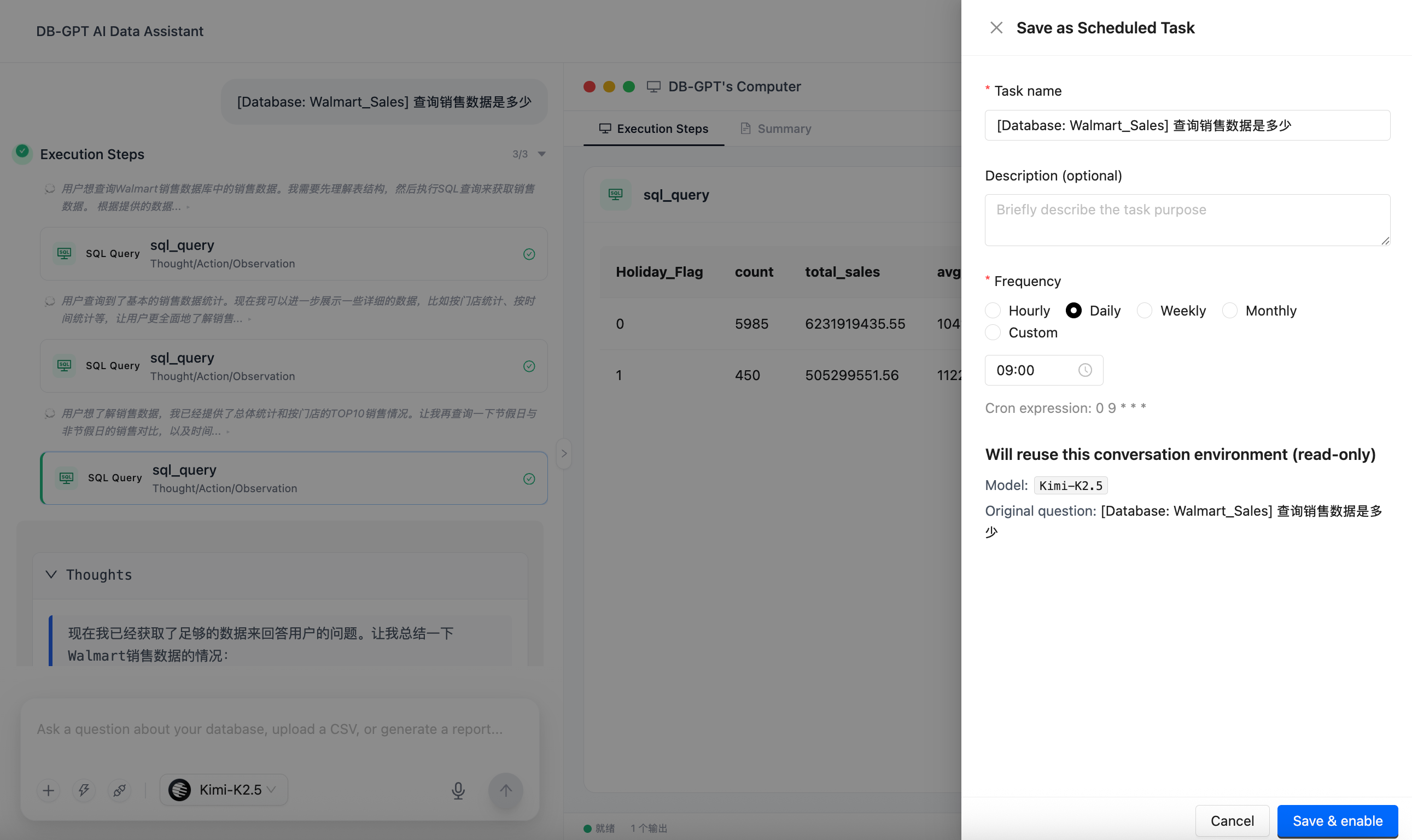
| Field | Description |
|---|---|
| Task name | Required. A name for the task. |
| Description | Optional. A note about what the task does. |
| Frequency | Hourly / Daily / Weekly / Monthly, or Custom for a raw cron expression. |
| Cron expression | Shown live as you adjust the frequency (e.g. 0 9 * * *). |
The "Will reuse this conversation environment (read-only)" section shows the frozen context — the model and the original question — that each run will replay. Click Save & enable to create the task and schedule it.
Managing tasks
The Scheduled Tasks page lists every task with its status, cron expression, next run time, and creator. Use the search box and the All / Enabled / Paused tabs to filter, and the Enable toggle to pause or resume a task.
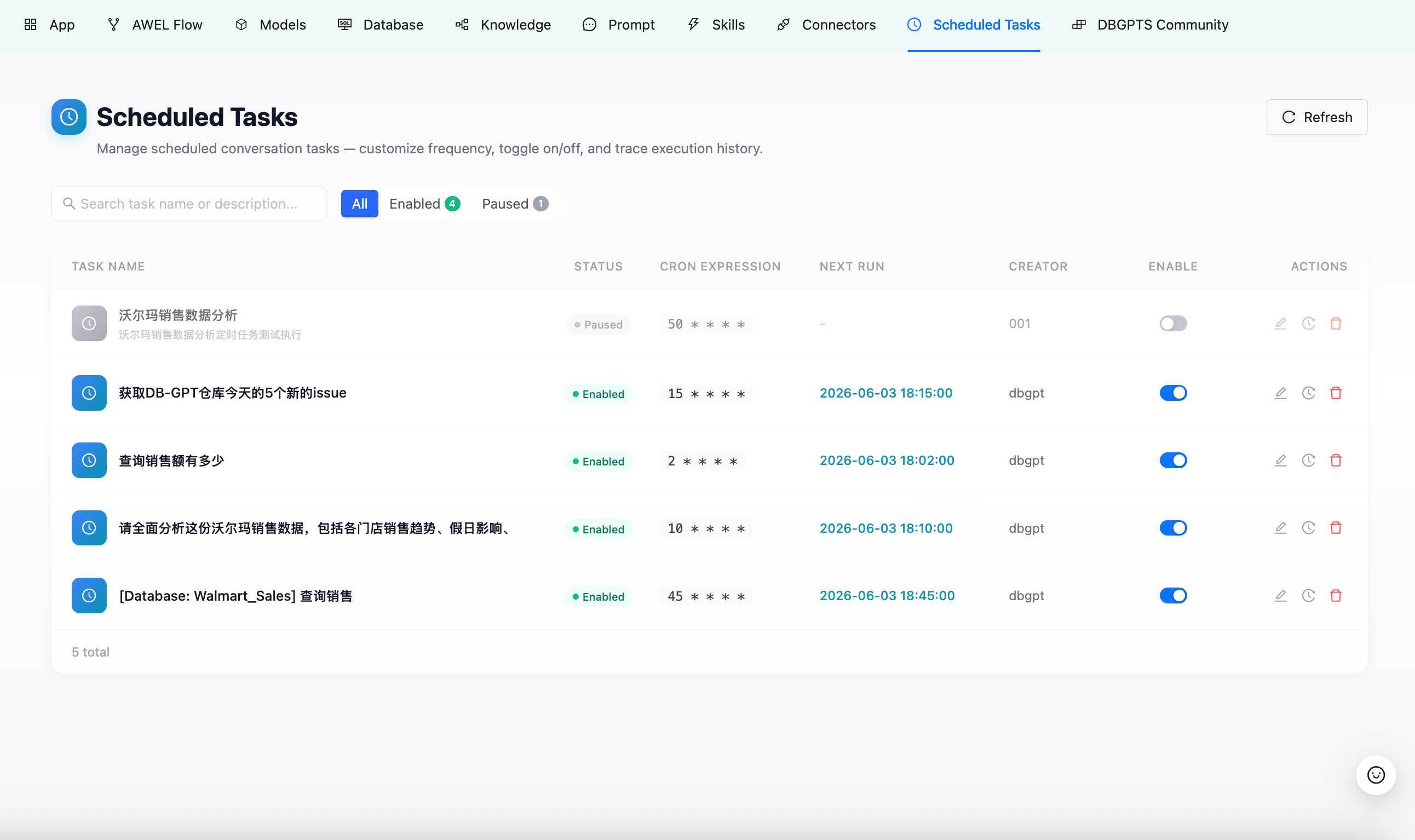
| Column | Description |
|---|---|
| Task name | Name and description. |
| Status | Enabled or Paused. |
| Cron expression | The active schedule. |
| Next run | When the task will fire next. |
| Creator | Who created the task. |
| Enable | Toggle to pause / resume. |
| Actions | Edit or delete. |
Task detail & execution history
Open a task to see its full configuration and run history.
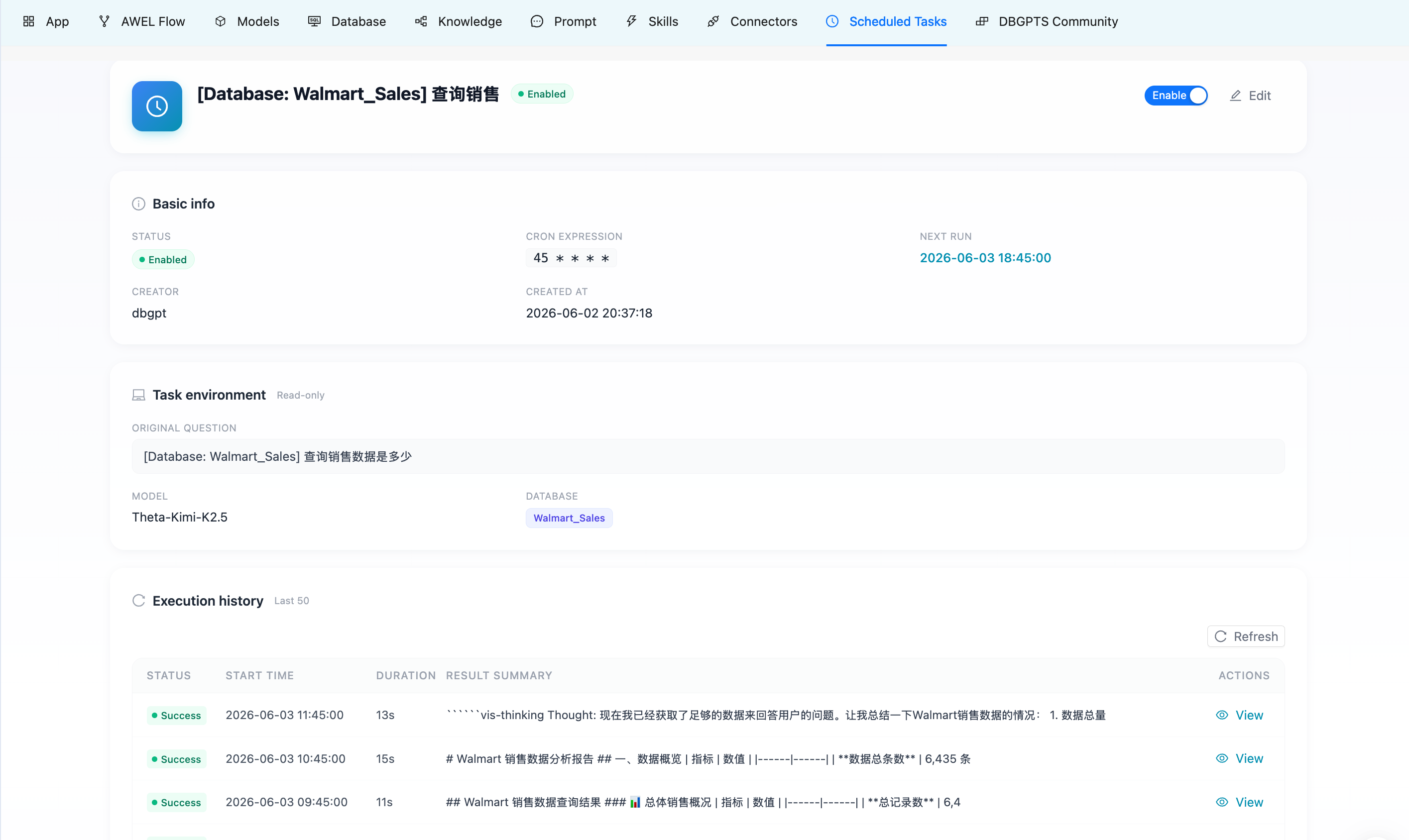
- Basic info — status, cron expression, next run, creator, created time.
- Task environment (read-only) — the original question, model, and database that every run replays.
- Execution history — the most recent runs, each with status (
Success/Failed/Timeout/Running), start time, duration, and a result summary.
Click View on any run to jump to the home page and replay that run's conversation — the full step stream and report are restored from history with no LLM calls. A banner at the top reminds you the conversation was generated by a scheduled task, with a link back to the task detail.
How it runs
- The in-process scheduler holds one job per enabled task, keyed by its cron expression.
- When a job fires, the runner starts a new conversation and replays the saved request against the agent.
- The run is recorded with its status, a summary, and the new conversation id used for replay.
- Runs are independent — a failure is logged against that run and the task simply waits for the next tick.
"View" loads a past run's stored conversation from the database. It never re-executes the agent, so it's instant and free.
Notes & limitations
- Tasks do not retry on failure — a failed or timed-out run is recorded and the task waits for the next scheduled time.
- Each run has a hard execution timeout to guard against runaway agents.
- In this release tasks are shared across users (the creator is shown for auditing); per-user isolation and notifications are planned for later.